A Kwikset smart lock freezes mid-command, won’t connect to your app, or you’ve forgotten the master code after moving into a new home. Before you panic, or call a locksmith, you can reset it yourself in most cases. Whether you need a quick soft reset to refresh the connection or a full factory reset to wipe the device clean, Kwikset smart locks have built-in reset options that work without special tools or technical expertise. This guide walks you through identifying your lock model, understanding your reset options, and getting back up and running in under 15 minutes.
Table of Contents
ToggleKey Takeaways
- A Kwikset smart lock reset can be completed in under 15 minutes using a recessed reset button without special tools or locksmith assistance.
- Soft resets clear temporary connectivity glitches and reconnect to networks while preserving codes, while factory resets wipe all programming and should only be used as a last resort.
- Model identification is critical since reset button locations and procedures differ—check your lock’s label, packaging, or the Kwikset app to confirm whether you have a Halo, Premis, 620, or SmartCode 888.
- After resetting your Kwikset smart lock, replace batteries with fresh alkaline ones, reprogram a new master code, and re-pair the device to your app before relying on it for daily use.
- If a reset fails, check for weak batteries, clean the reset button contacts, ensure strong WiFi signal, and contact Kwikset support if the reset mechanism appears to have a hardware fault.
Why You Might Need to Reset Your Kwikset Smart Lock
Several scenarios call for resetting your Kwikset smart lock. The most common trigger is a connectivity issue, your lock stops responding to the app, won’t sync with your smart home hub, or drops offline repeatedly. Sometimes a factory reset is necessary after a failed firmware update or if the lock gets stuck in a state where it won’t accept new credentials.
Lost or forgotten access codes are another reason homeowners reset. If you’ve misplaced the master code or inherited the lock from a previous owner and don’t have the setup PIN, a factory reset clears all programming and lets you start fresh. A few users also reset locks after replacing batteries or moving the lock to a different door, especially if they’re troubleshooting pairing problems.
Security-minded homeowners sometimes reset before selling a home or handing the lock off to a family member. A factory reset ensures no old user codes, schedules, or app pairings linger on the device. It’s also a reasonable troubleshooting step when other solutions, like restarting the app or re-pairing the lock, haven’t worked.
Understanding Your Kwikset Model and Reset Options
Identifying Your Kwikset Lock Type
Kwikset makes several smart lock models, and reset procedures differ slightly between them. The most common residential models are the Kwikset Halo (WiFi), Kwikset Premis (Bluetooth), Kwikset 620 (Z-Wave), and older Kwikset SmartCode 888 units. You’ll find the model number on a label inside the lock or on the packaging, it usually starts with “KW” or lists the specific product name.
If you’re unsure, check the Kwikset app or your product documentation. The model name also appears on the lock’s interior keypad. Some newer models have a QR code on the back that links directly to setup guides. Knowing your exact model is critical because the reset button location and procedure vary.
Factory Reset vs. Soft Reset: What’s the Difference?
A soft reset is a gentle restart that clears temporary glitches without erasing your codes or app settings. Think of it like rebooting your phone, it flushes memory and reconnects to networks, but your photos and apps stay intact. A soft reset is the first troubleshooting step for connectivity issues and usually takes 30 seconds.
A factory reset wipes the lock completely, erasing all user codes, schedules, WiFi credentials, and app pairings. You’re left with a blank slate, exactly as if you’d just unboxed it. This is irreversible and should be your last resort, reserved for lost master codes, preparing the lock for a new owner, or solving persistent problems that soft resets won’t fix. After a factory reset, you’ll need to reprogram all codes and re-pair the lock to your app from scratch.
Step-by-Step Factory Reset Instructions
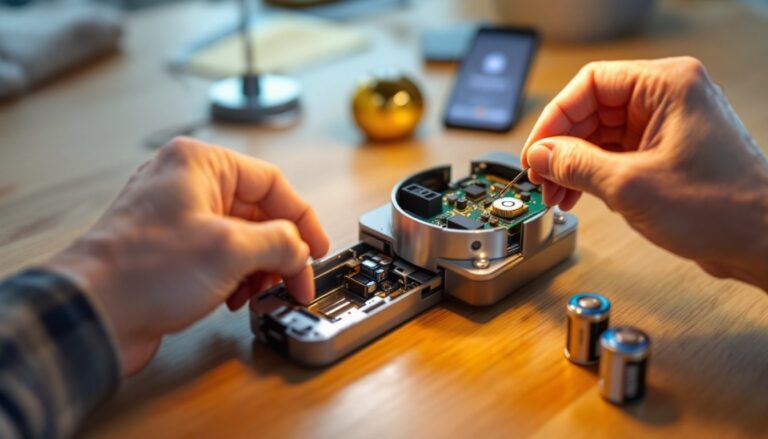
Before you reset, remove the interior keypad cover by sliding it downward or unclipping it (check your manual for your specific model). You’ll need access to the reset button, which is typically a recessed pinhole on the interior circuit board.
For Kwikset Halo (WiFi) and Premis (Bluetooth) models:
- Remove four AA batteries from the battery compartment.
- Press and hold the recessed reset button (use a straightened paperclip or the reset tool in your manual) for 15 seconds while the batteries are removed.
- Reinsert the batteries. The lock will beep and flash, signaling the reset is complete.
- You’ll hear three beeps, this confirms the factory reset was successful.
For Kwikset 620 (Z-Wave) models:
- Remove batteries.
- Locate the reset button inside the battery compartment and hold it for 10 seconds.
- Reinstall batteries. The lock will flash twice and beep once when reset is complete.
For older Kwikset SmartCode 888:
- Remove batteries and wait 30 seconds.
- Hold the reset button for 20 seconds while batteries are out.
- Reinstall batteries and wait for confirmation beeps.
The entire process takes about 5 minutes. Be patient, holding the button long enough is crucial. Too short, and the reset won’t register. After a successful reset, the keypad will be blank, and the lock will return to factory defaults. Recent reviews on CNET’s smart home guides emphasize that resetting is one of the most reliable fixes for stuck locks.
Troubleshooting Common Reset Issues
If your lock doesn’t beep or flash after reset, the most likely culprit is weak or dead batteries. Even if the lock seemed to work fine before, the reset process is power-intensive. Replace all AA batteries with fresh alkaline ones (avoid rechargeable batteries for smart locks, they don’t provide consistent voltage). Retest the reset.
If you’ve held the button for 15+ seconds and the lock still won’t respond, the reset button might be stuck or the interior contacts might be dirty. Gently wiggle the button while pressing it, or use a slightly damp cotton swab to clean around the button. Dust or corrosion inside the lock can prevent the reset circuit from engaging.
Another common issue: the lock resets, but you can’t re-pair it to the app afterward. This usually means your WiFi network signal is weak or the lock is out of range of your hub. Move closer to your router, ensure your phone is on the same WiFi network as the lock, and try again. For Z-Wave models, confirm your hub is powered on and within range. Tom’s Guide’s home security reviews note that network interference, from microwaves, cordless phones, or competing smart devices, can prevent pairing.
If the lock still won’t reset, it may have a hardware fault. Contact Kwikset support before assuming the lock is dead, they offer troubleshooting steps and warranty replacements if the reset mechanism is defective.
Reconnecting Your Smart Lock After Reset
After a successful factory reset, your lock is a blank slate. You’ll need to reprogram it, starting with a new master code (usually via the physical keypad), then reconnect it to your app and smart home system.
Step 1: Set a new master code. Open the Kwikset app (or check the manual for keypad-only setup). The default temporary code is often 000000 or 123456, consult your product documentation. Enter the temporary code, then navigate the menu to create a new 6-digit master code of your choice. This code unlocks the lock and lets you manage other user codes.
Step 2: Add the lock to your app. In the Kwikset app, tap “Add Device” or “Pair New Lock.” Select your lock model, then scan the QR code on the lock’s interior label. Alternatively, enter the lock’s serial number manually. The app will search for the lock on your network.
Step 3: Connect to WiFi (if applicable). For WiFi models like Halo, the app will prompt you to select your network and enter your WiFi password. The lock must be powered (batteries installed) and close to your router. Wait 30–60 seconds for the connection to establish.
Step 4: Test the connection. Lock and unlock the door via the app to confirm it’s responding. Create a few additional user codes if needed (guest codes, family codes, temporary access). Digital Trends’ smart home tech guides recommend testing all codes before relying on the lock for daily use.
If re-pairing fails, check that your app is fully updated and your phone has a strong internet connection. For Z-Wave locks, ensure your hub is online and communicating with your WiFi network. Restart both the app and the lock if pairing stalls.